

Sleek Phone Advertisement Flyer - PART 1
Cpotorac
Member since:
Aug 2010
In this tutorial I will show you guys how to make a very interesting and sleek Phone Advertising wallpaper.
Final Image
Cpotorac
Member since:
Aug 2010
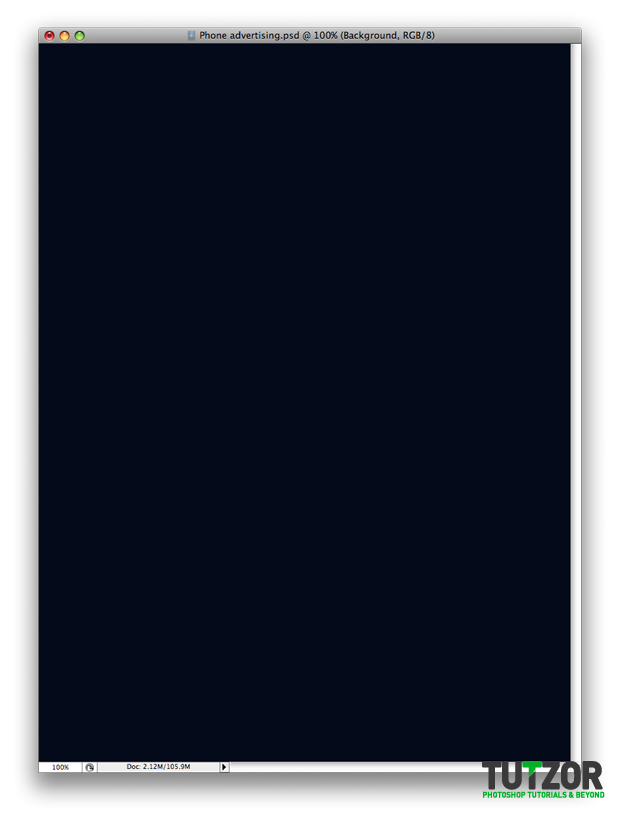
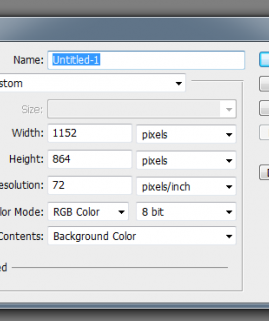
Start with a new document. My document is 741×1000 and I used this color: #000412.
Cpotorac
Member since:
Aug 2010
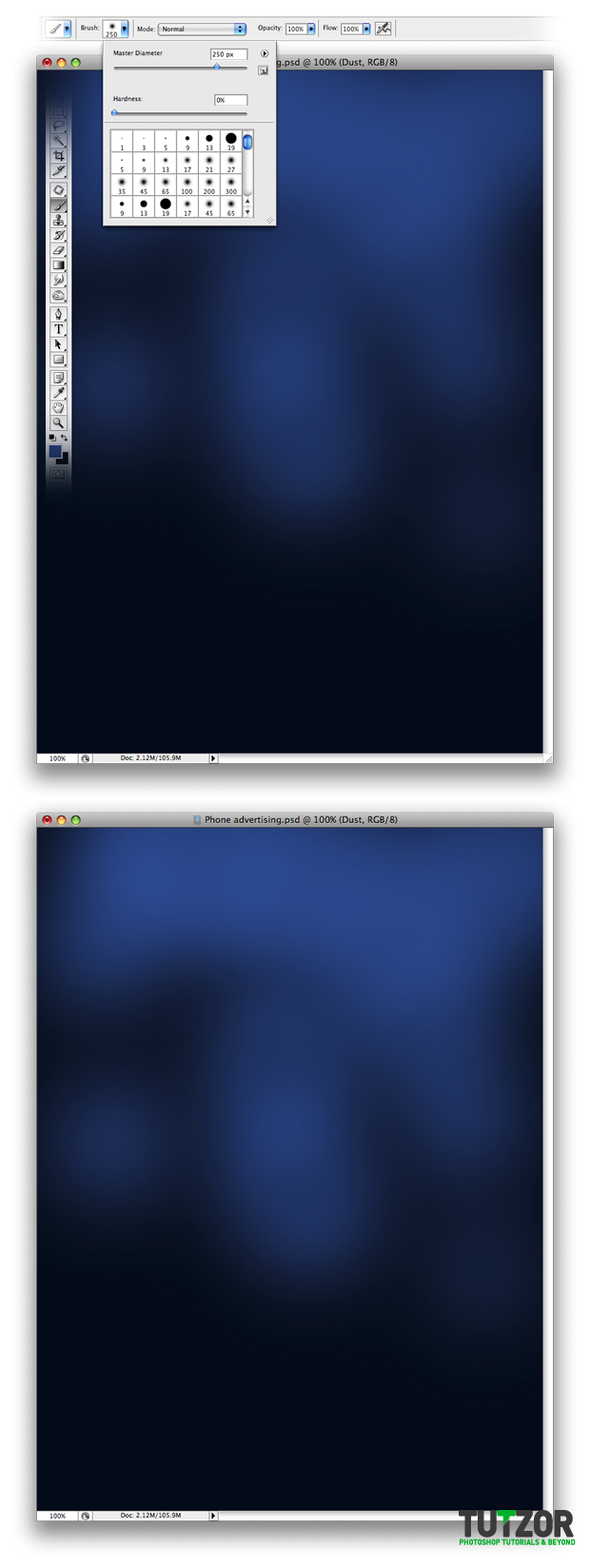
Create a new layer and name it Dust. Now select your brush and set it to 0% Hardness and 250 size. Also you need to use this color: #0b4690.
Now that you have everything set just paint with the brush as I did or maybe some other way you like. Than set the Dust layer to Screen.
Cpotorac
Member since:
Aug 2010
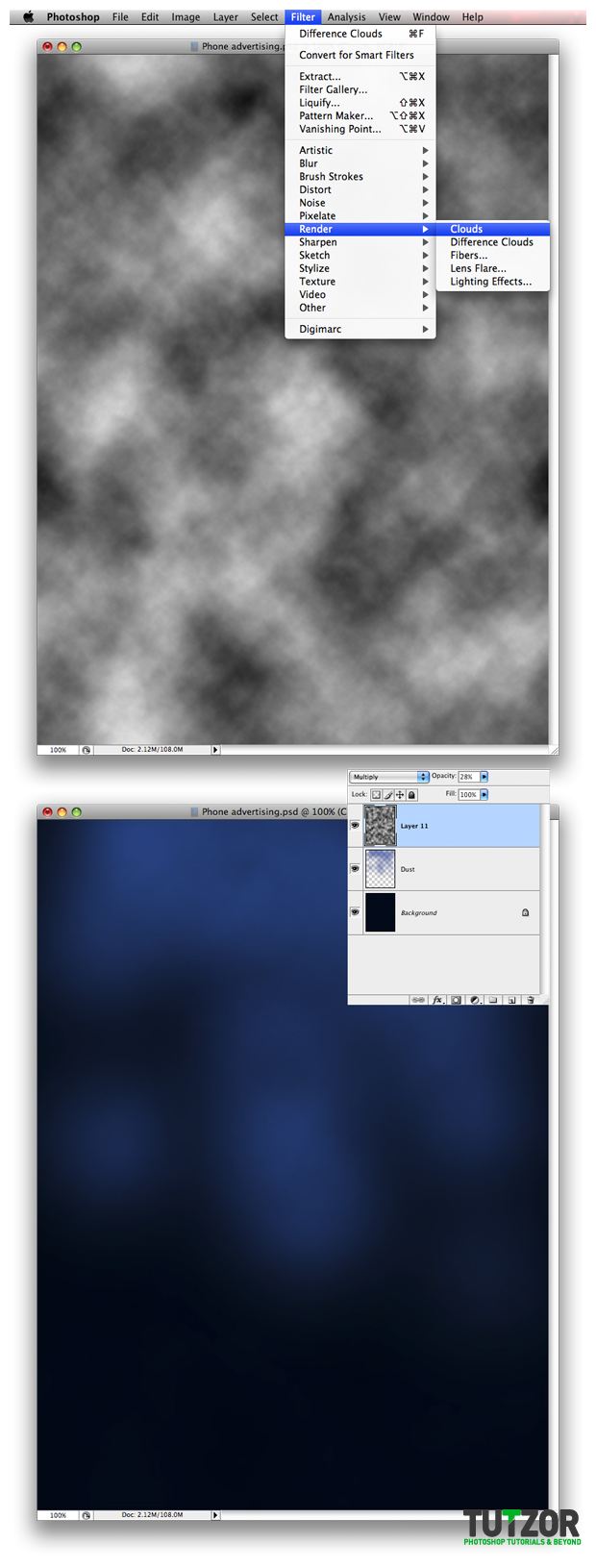
Set you foreground to White and background to Black. Make a new layer and call it Clouds and go to Filter – Render – Clouds. Then set the Opacity of the Clouds layer to 28% and set it to Multiply.
Cpotorac
Member since:
Aug 2010
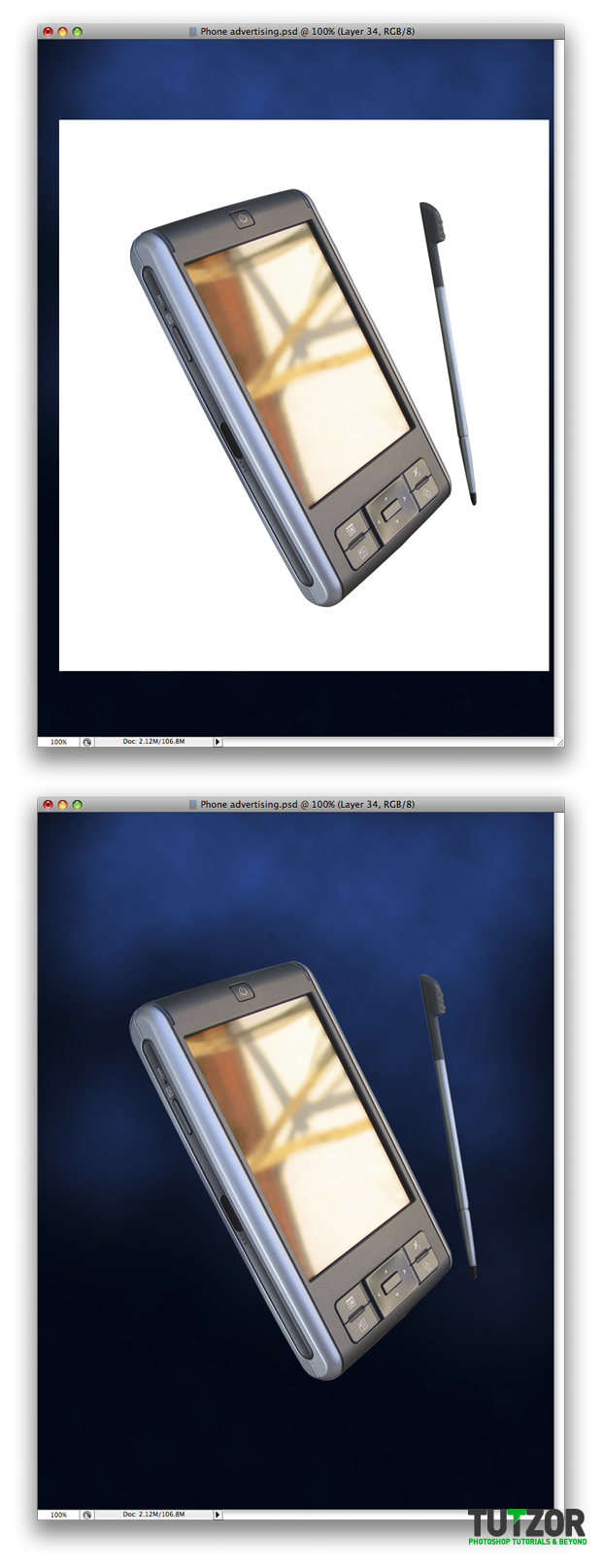
Now you need to bring your product in this document. The phone I will use I got it from http://www.sxc.hu/photo/855196. And then cut the phone out.
Cpotorac
Member since:
Aug 2010
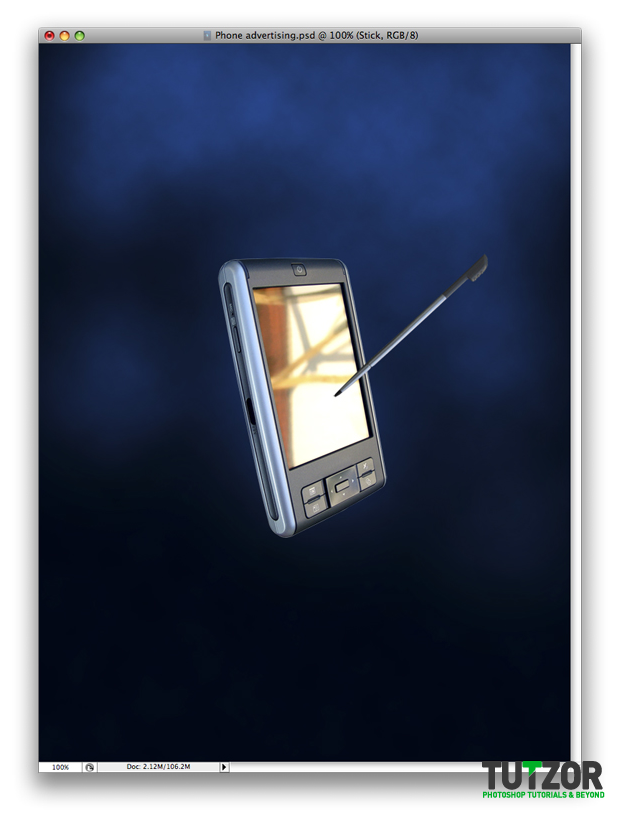
Next you need to resize your phone to the desired size and also rotate it a bit. Name the layer Pocket PC. Also I will need you to select the mobile pen and copy it into a separate layer and name it Pen.
Cpotorac
Member since:
Aug 2010
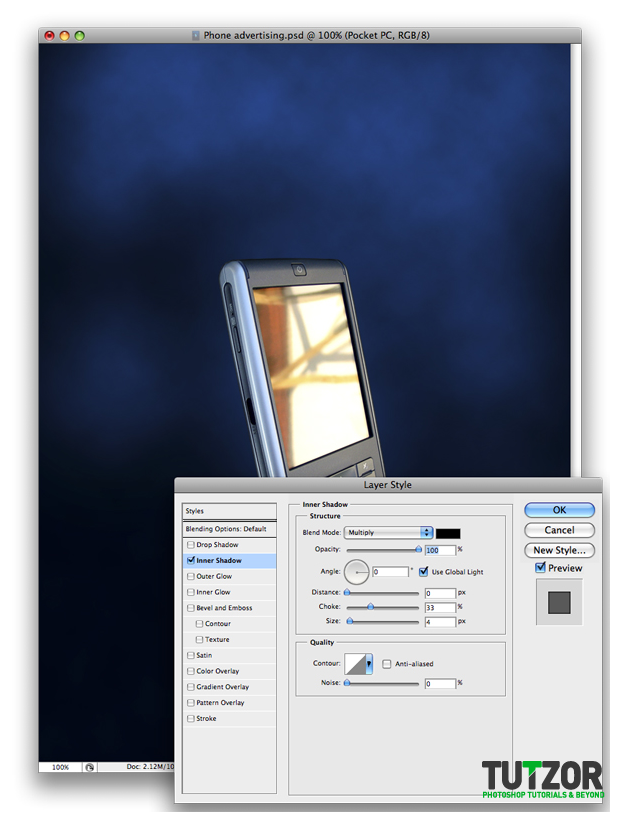
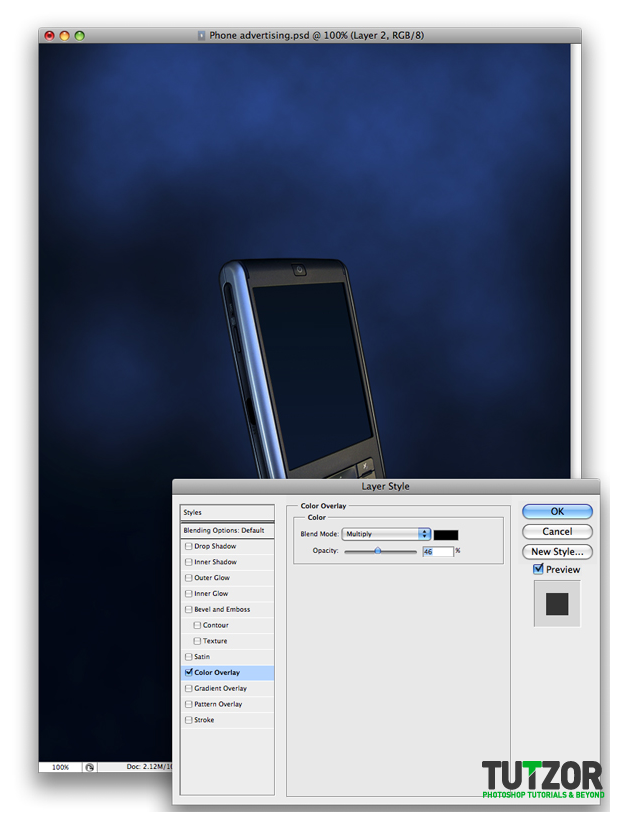
I will deactivate the Pen layer for now, as I will get back to it later. First use these settings for the Pocket PC layer Blending options:
Cpotorac
Member since:
Aug 2010
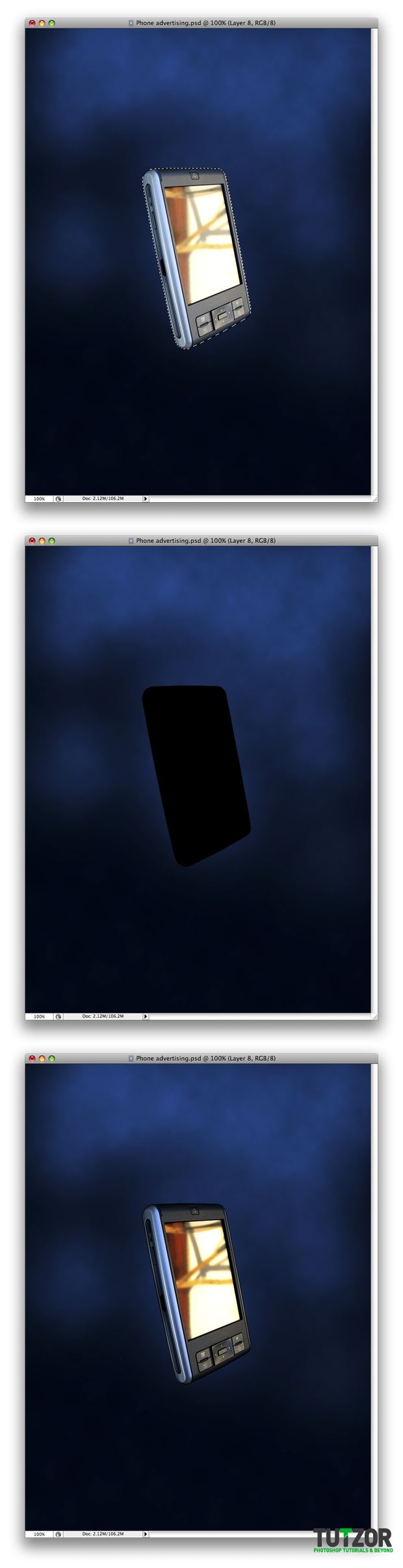
Ctrl + Click on the Pocket PC layer to make a selection. Create a new blank layer and fill the selection with black. Then set the layer to Soft Light.
Cpotorac
Member since:
Aug 2010
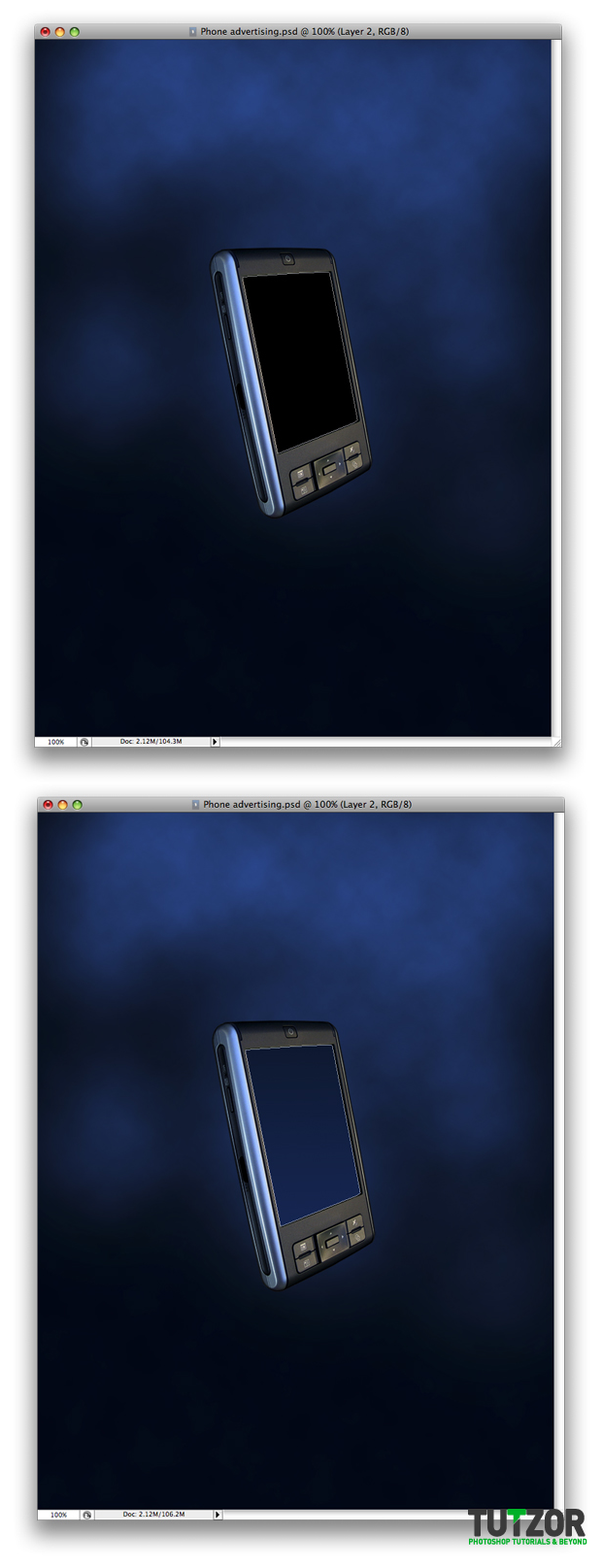
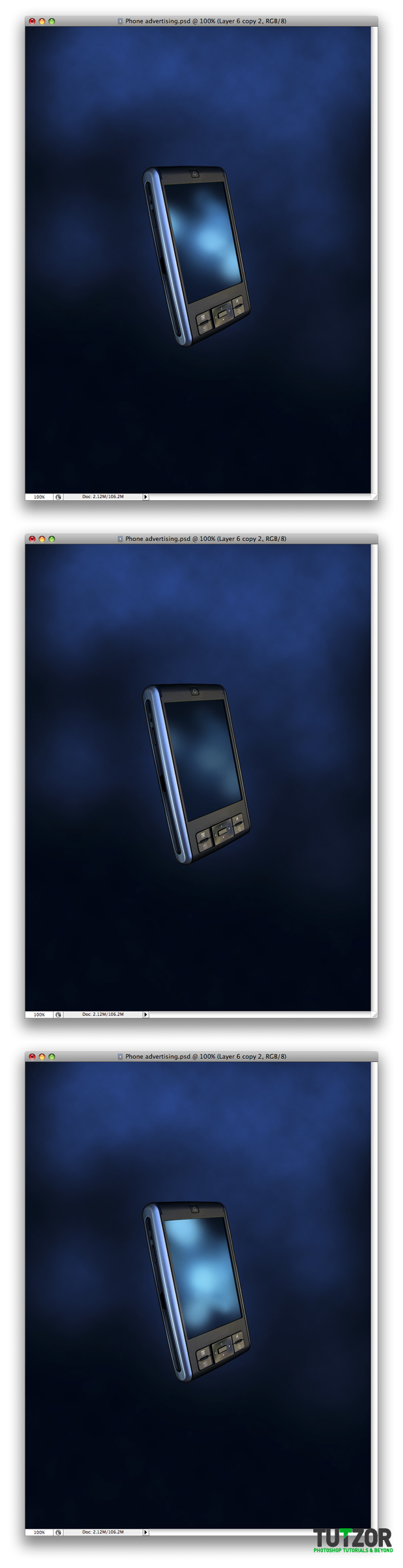
Create a new folder and name it Screen. Make a shape as I did, name it Screen and fill it with a gradient from up to down using the colors black and #001f4e.
Cpotorac
Member since:
Aug 2010
Double click on the layer to enter the Blending Options and use these settings:
Cpotorac
Member since:
Aug 2010
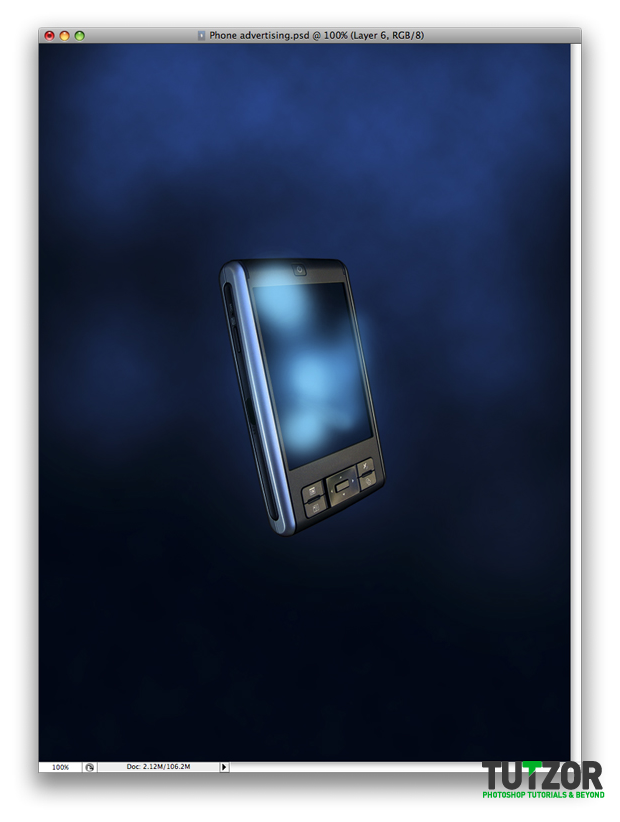
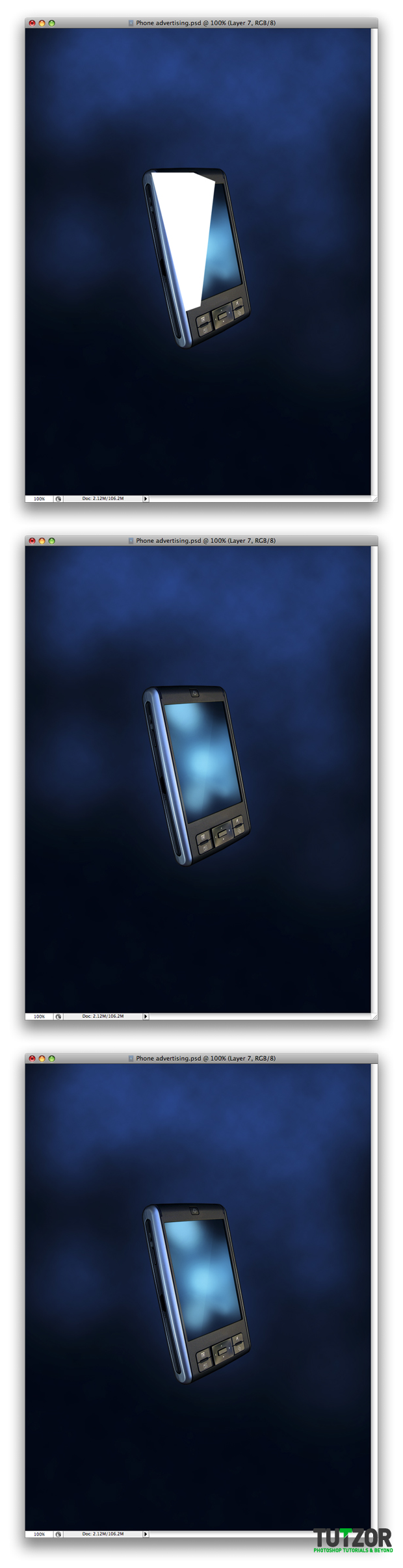
Make a new layer over the one is step 8. Use the brush set to 0$ Hardness and size 100. Also use this color: #47c0ef.
Using the brush draw as I did on the new layer you just created.
Cpotorac
Member since:
Aug 2010
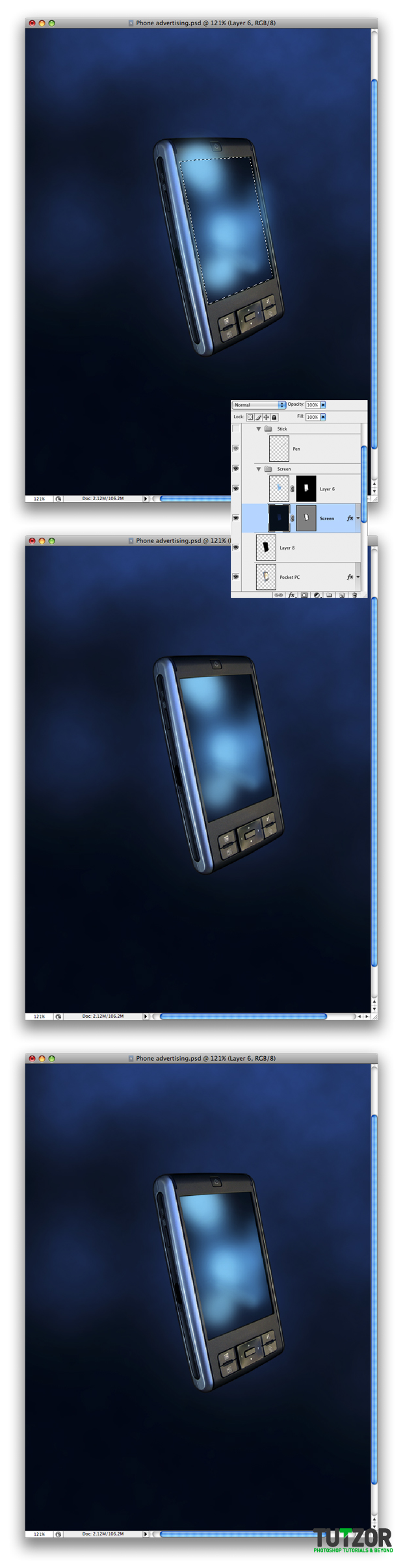
Next Ctrl + Click on the Screen Layer in Step 8 to make a selection. Make sure to click on the mask not on the layer thumbnail. Than click on the Add vector mask button to mask away the part of this dust you don’t want. Then set the layer to screen.
Cpotorac
Member since:
Aug 2010
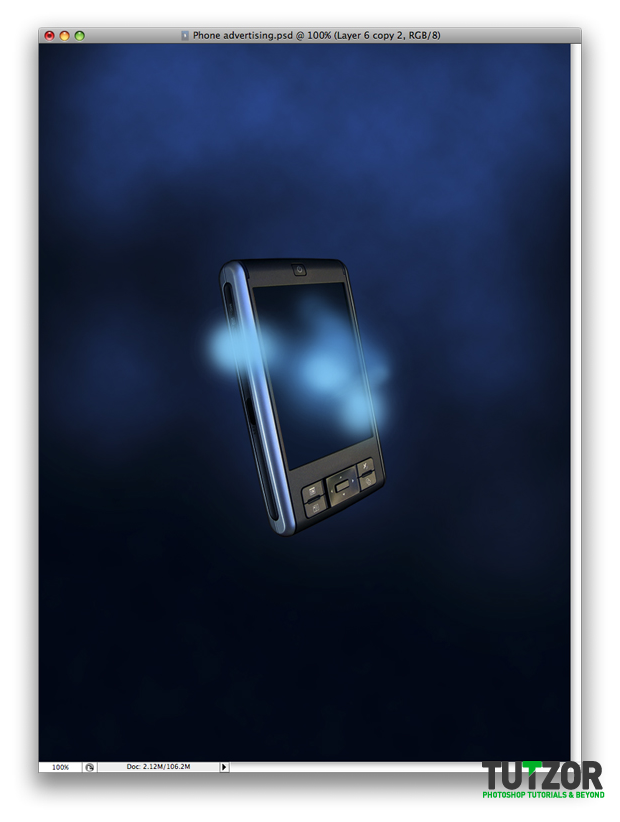
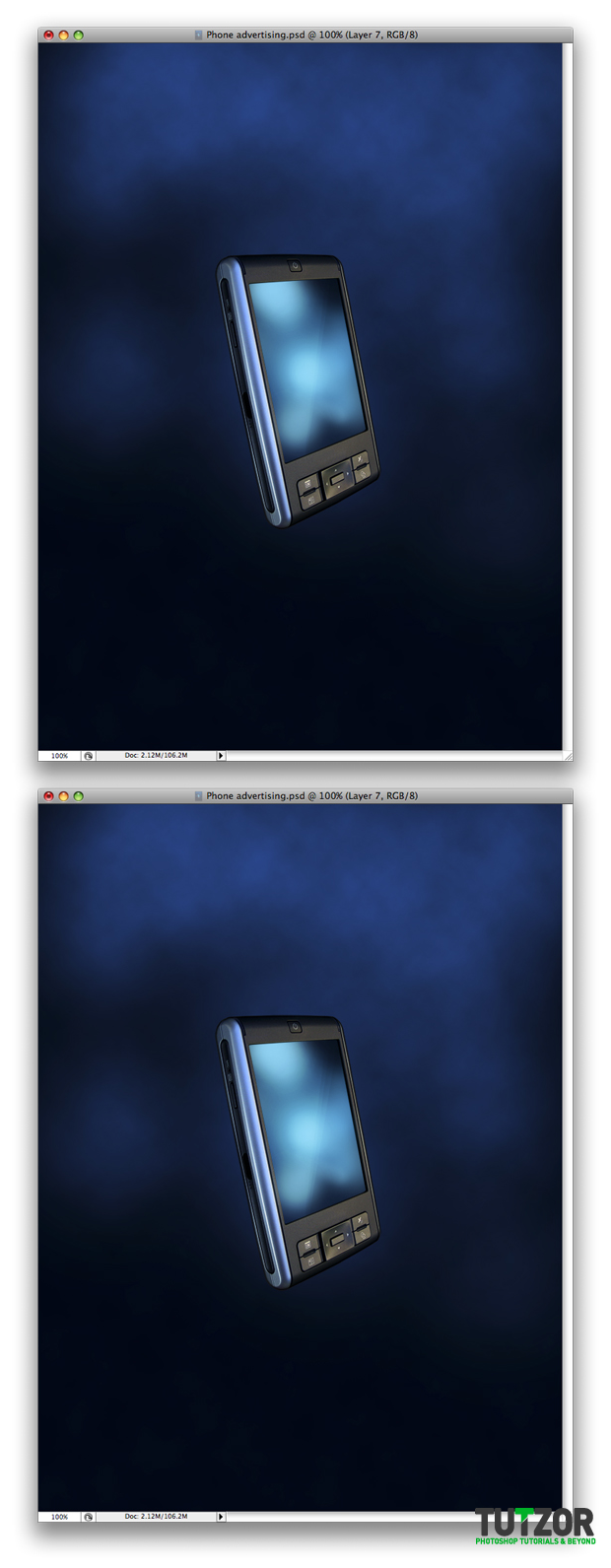
Make another layer and the same as with the one on step 10 and 11 using the same color draw as I did. (I have hidden the other one so you can see how I draw over this layer.)
Cpotorac
Member since:
Aug 2010
As you did with the layer in step 11 mask this one using the same steps.
Now set it to Opacity 40% and Screen.
Then I will activate the other layer back.
Cpotorac
Member since:
Aug 2010
Make a shape as I did using the Pen tool set to Shape layers. Than set the shape to Opacity 7% and Overlay. And last simply mask it to show only on the screen. Use the same technique in step 11 to mask it.
Cpotorac
Member since:
Aug 2010
In this step you will duplicate 2 times the shape you just made and move them a little so that you get something similar to what I have done.
Cpotorac
Member since:
Aug 2010
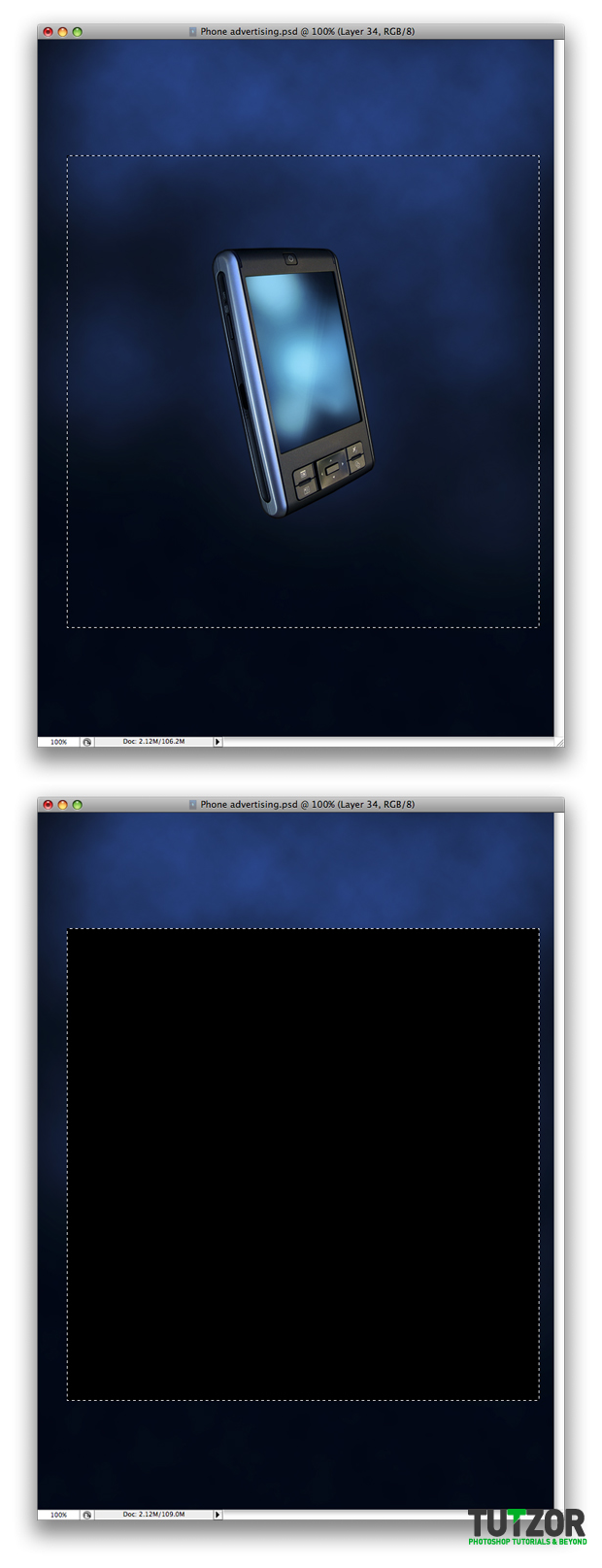
Make a new folder and name it Round Ring. In this folder make a selection as I did and fill it with black.
Cpotorac
Member since:
Aug 2010
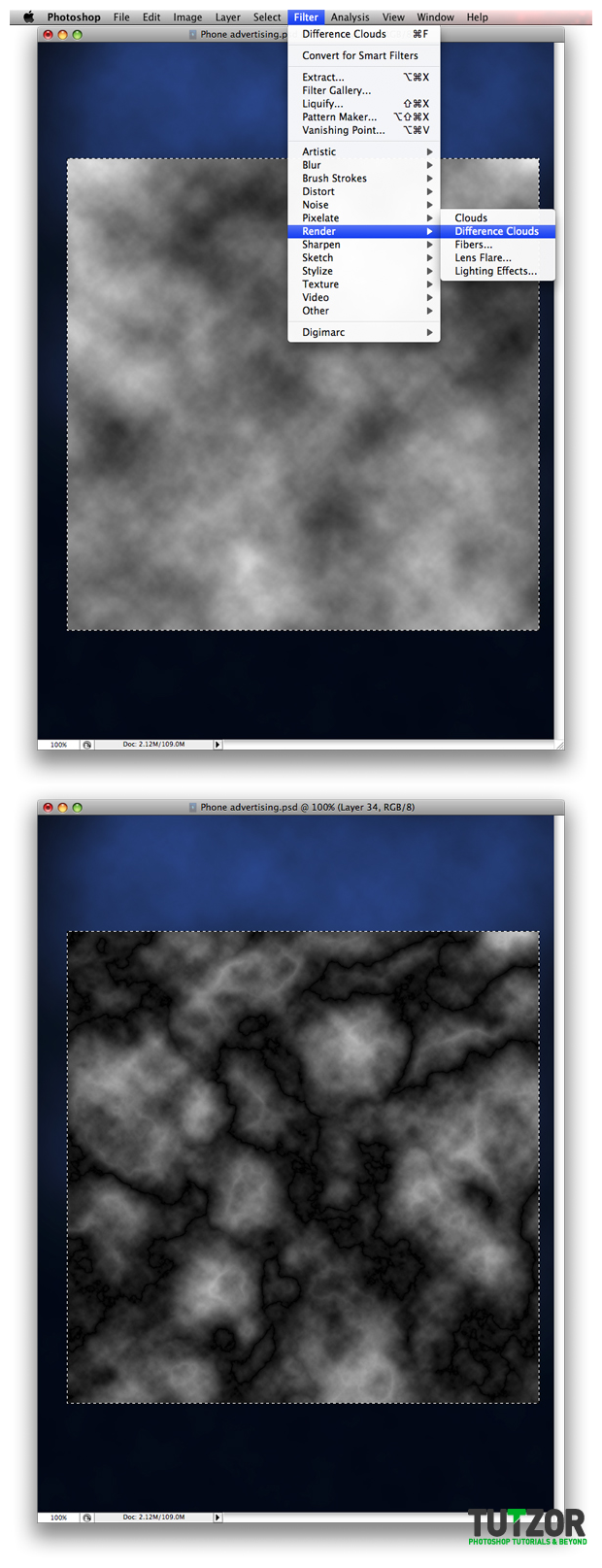
While you still have the selection go to Filter – Render – Difference Clouds. Than press Ctrl + F until you get the look you want.
Cpotorac
Member since:
Aug 2010
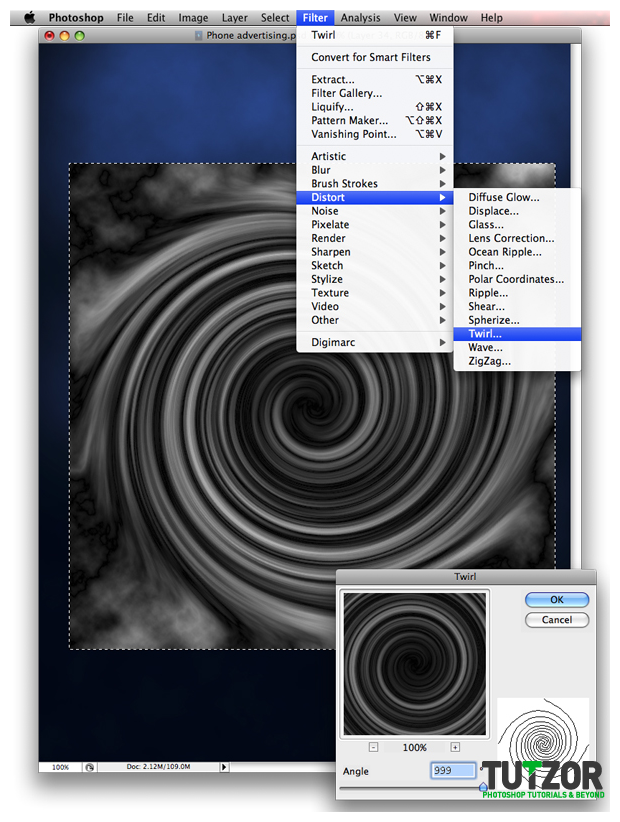
Now go to Distort – Twirl and use my settings. Also keep in mind that when you do this you have to have the clouds layer selected.
Cpotorac
Member since:
Aug 2010
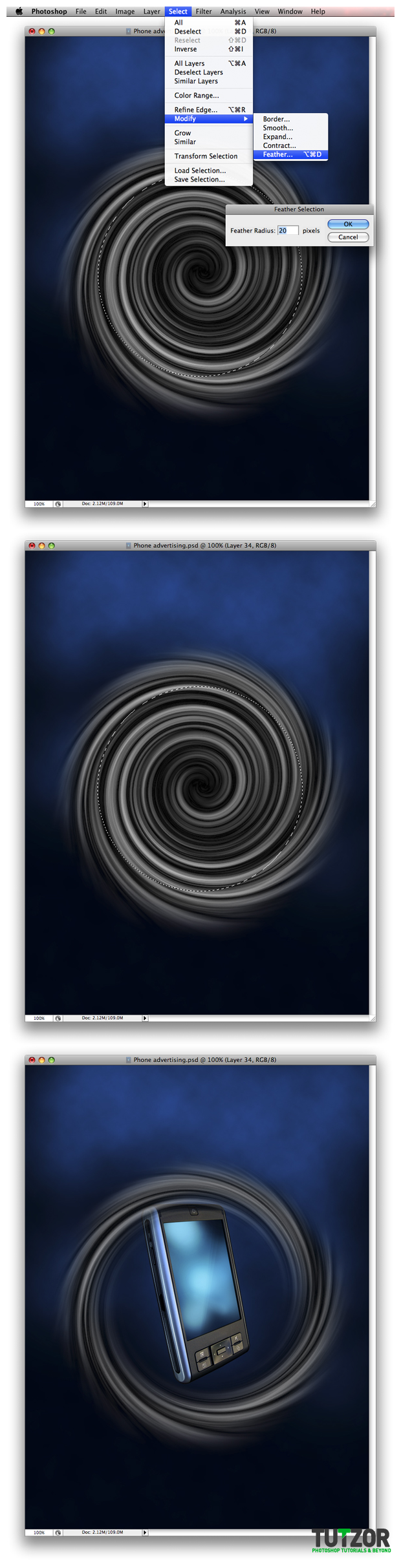
Now you can finally deselect the layer and chose the Elliptical Marquee Tool and make a selection as I did. Than go to Select – Modify – Feather and use a 20% Radius. Next you need to inverse the selection by clicking Ctrl + Shift + I. And last step is to simply erase the part of the twirl that is not needed.
Cpotorac
Member since:
Aug 2010
Same as in step 19 make a selection in the center of the ring this time. Again go to Select – Modify – Feather and use the same 20% Radius. Than erase using the Eraser Tool.
Cpotorac
Member since:
Aug 2010
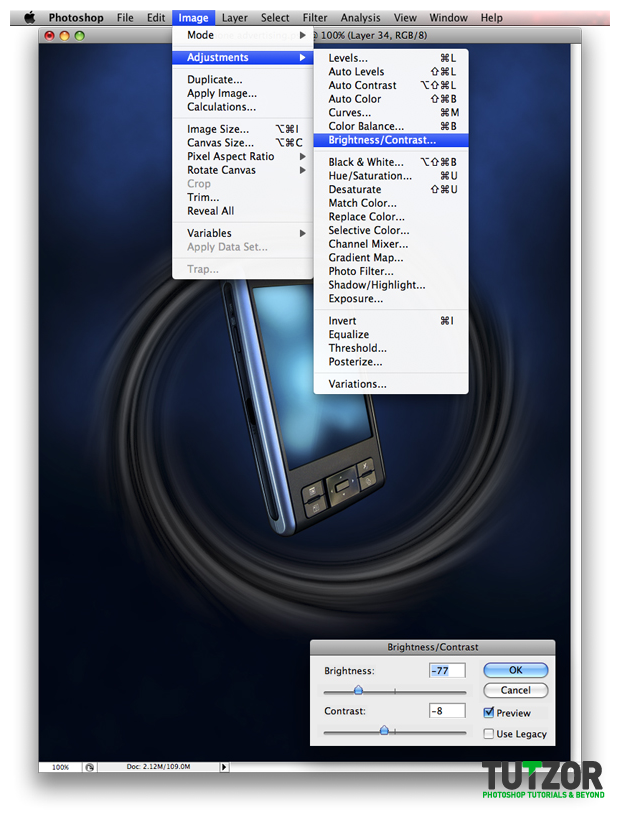
Now go to Image – Adjustments – Brightness and Contrast.
Cpotorac
Member since:
Aug 2010
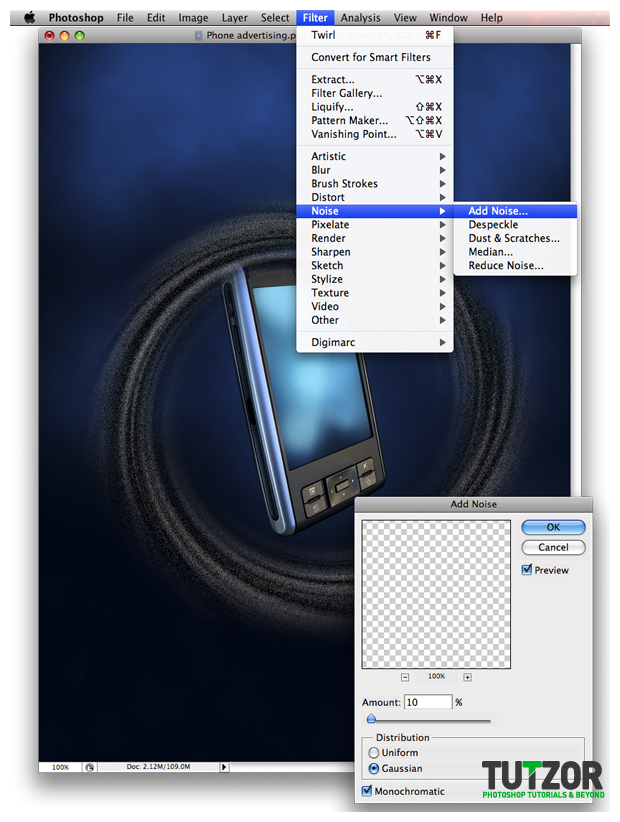
Next go to Filter – Noise – Add noise. Use a 10% Radius.
Cpotorac
Member since:
Aug 2010
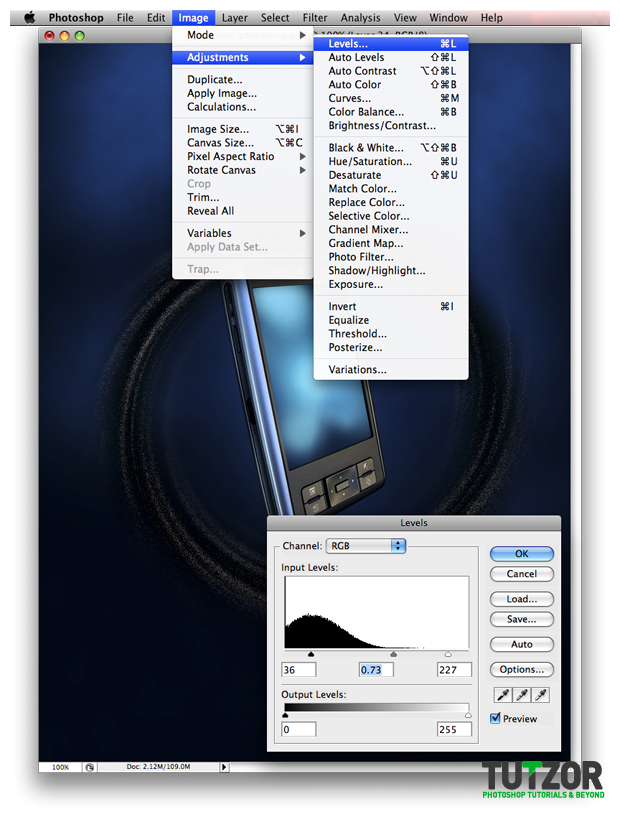
Now go to Image – Adjustments – Levels. Use my settings.
Cpotorac
Member since:
Aug 2010
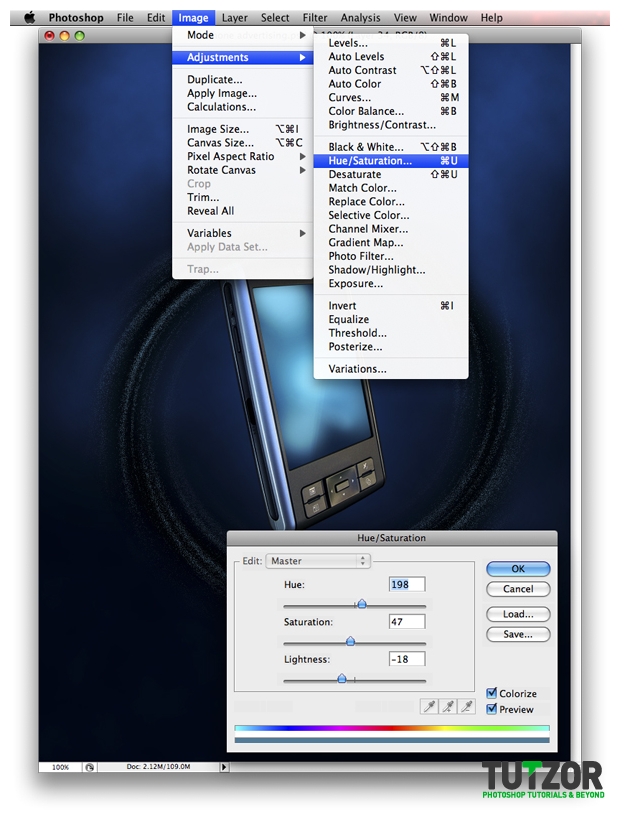
Next go to Image – Adjustments – Hue/Saturation and again use my settings:
Cpotorac
Member since:
Aug 2010
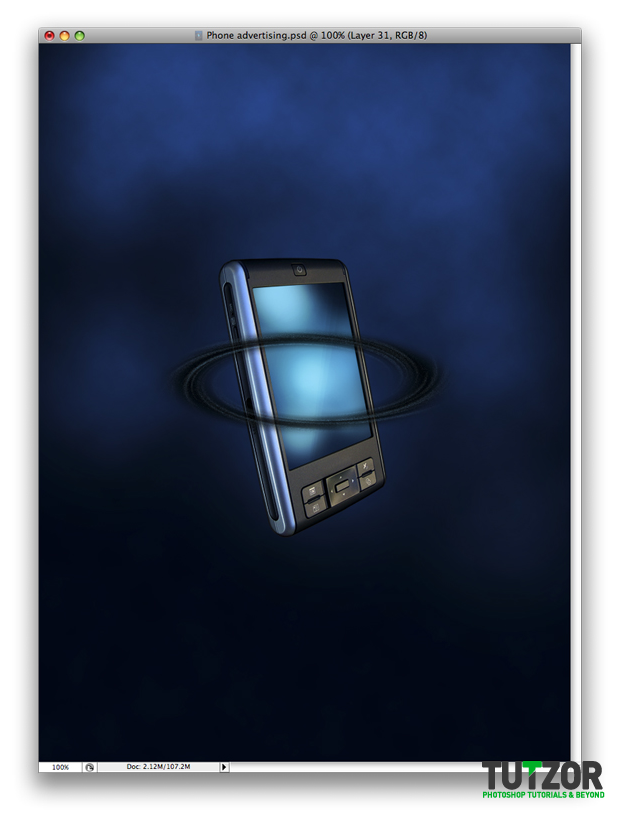
Now you need to transform the ring.
flyer templates
Member since:
Aug 2010
Wow. The tutorial is so detailed. Every step is presented very well. The idea of the tutorial is also nice. Thank you.
prajith
Member since:
Aug 2010
very usefull tutorial for me thanks yar.............................
Marco
Member since:
Jun 2010
Smashin! I really enjoyed this tut. Thanks again!
How to Make a Professional Ad – 15 Awesome Tutorials | CSS Citadel
Member since:
Jun 2010
[...] Sleek Phone Advertisement Flyer This tutorial teaches us how to make a very interesting and sleek phone advertising wallpaper. A very good tutorial with room for different personal adjustments. Add your own text and design elements to the finished look. [...]
How to Make a Professional Ad – 15 Awesome Tutorials | CSS Citadel
Member since:
Jun 2010
[...] Sleek Phone Advertisement Flyer This tutorial teaches us how to make a very interesting and sleek phone advertising wallpaper. A very good tutorial with room for different personal adjustments. Add your own text and design elements to the finished look. [...]
How to Make a Professional Ad – 15 Awesome Tutorials : CSS Citadel
Member since:
Jun 2010
[...] Sleek Phone Advertisement Flyer This tutorial teaches us how to make a very interesting and sleek phone advertising wallpaper. A very good tutorial with room for different personal adjustments. Add your own text and design elements to the finished look. [...]
How to Make a Professional Ad – 15 Awesome Tutorials | crazyegg.net
Member since:
Jun 2010
[...] looking laptop ad. Try it using a tv, cellphone, window, painting – the possibilities are many! Sleek Phone Advertisement Flyer This tutorial teaches us how to make a very interesting and sleek phone advertising wallpaper. A [...]
How to Make a Professional Ad – 15 Awesome Tutorials « gabriel catalano | in-perfección
Member since:
Jun 2010
[...] Sleek Phone Advertisement Flyer This tutorial teaches us how to make a very interesting and sleek phone advertising wallpaper. A very good tutorial with room for different personal adjustments. Add your own text and design elements to the finished look. [...]
How to Make a Professional Ad - 15 Awesome Tutorials | Onextrapixel - Showcasing Web Treats Without A Hitch
Member since:
Jun 2010
[...] Sleek Phone Advertisement Flyer This tutorial teaches us how to make a very interesting and sleek phone advertising wallpaper. A very good tutorial with room for different personal adjustments. Add your own text and design elements to the finished look. [...]
30 Popular Photoshop Tutorials of 2008 - www.huedesigner.com
Member since:
May 2010
[...] Sleek Phone Advertisement Flyer [...]
admin
Member since:
May 2010
Control + T to transform.
:)
JJ
Member since:
May 2010
STEP 26? HOW U DO THAT? =/(
pratham
Member since:
May 2010
You have done great work .Thanks for sharing with us.
http://www.scrapsforever.com
40 Top Notch Print Based Tutorials | DeerflyDesigns
Member since:
Apr 2010
[...] Sleek Phone Advertisement Flyer> [...]
sammy
Member since:
Apr 2010
fooff ,!! i thought this tutorial would never end
.. Never the less, great work....out of my reach though..
all the best, bye
40 tane kaliteli photoshop dersi | Web Tasarım Bİlgisi
Member since:
Apr 2010
[...] Sleek Phone Advertisement Flyer> [...]
| Web Tasarım Bİlgisi
Member since:
Apr 2010
[...] Sleek Phone Advertisement Flyer> [...]
Alber
Member since:
Mar 2010
Hello!
On step # 1 when your are talking about the size of the document, are you talking about inches, cm, ....? I don´t know if it is a dumb question...
Thanx a lot for you great work and help
Over 40 Creative Examples of Poster Designs | print24 Blog
Member since:
Mar 2010
[...] Sleek Phone Advertisement Flyer [...]
40+ kreative Beispiele der Postergestaltung | print24 Blog
Member since:
Mar 2010
[...] Sleek Phone Advertisement Flyer [...]
Comments
Re: Sleek Phone Advertisement Flyer - PART 1
nice work keep it up
see another site with great tutorials
http://www.tutorials99.com
Re: Sleek Phone Advertisement Flyer - PART 1
Excellent Tutorial. Detailed description of steps. For beginner is one of the best tutorial
Post new Tutzor Comment